 Typeglow
Subtitles too small?
Font looks wrong?
Take control of subtitles in your browser. Choose a font for each language, enlarge the text and add a clearer backdrop. Get back to enjoying the story.
Supports Netflix and YouTube websites only.
Free for Chrome. No Typeglow account needed.
Explore the controls
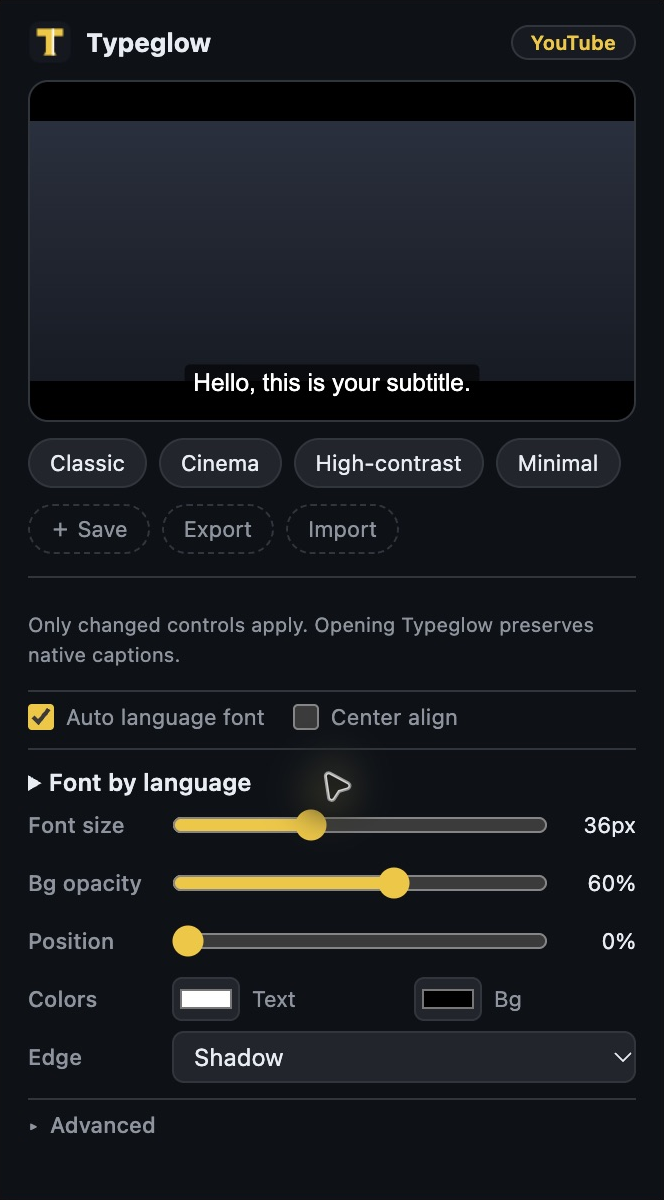
I built Typeglow after subtitles looked wrong on one of my Netflix browser setups, and the available subtitle settings did not give me the font control I needed. Now you can choose the look that works for you.
Start with Classic, Cinema, High-contrast or Minimal.
Fine-tune your style. Save it. Keep a different setup for each site.
A font for
each language.
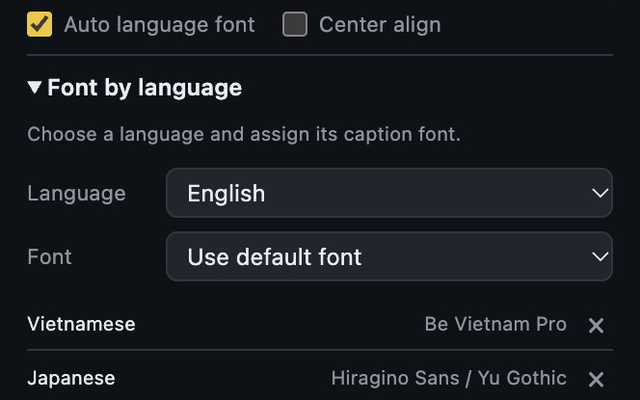
Choose from 20 language options and assign the fonts you like. Give Vietnamese its own typeface, Japanese another, and choose a default for everything else.
Language detection runs on your device. For short or mixed-language lines, your default font helps keep captions readable. Switch Auto language font off whenever you want to use one font for all captions.
Give every line
room to breathe.
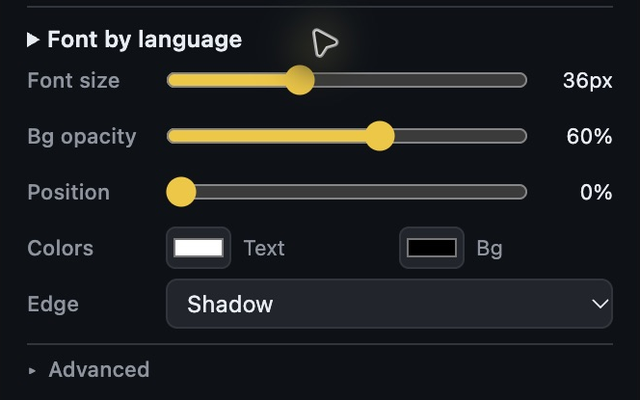
Adjust subtitle size, color, background opacity and vertical position. Choose a shadow or outline to help the words stand out from the scene.
Use keyboard shortcuts to nudge size and position. Save a style as a preset, then export it or import it on another device.
Bring your own type.
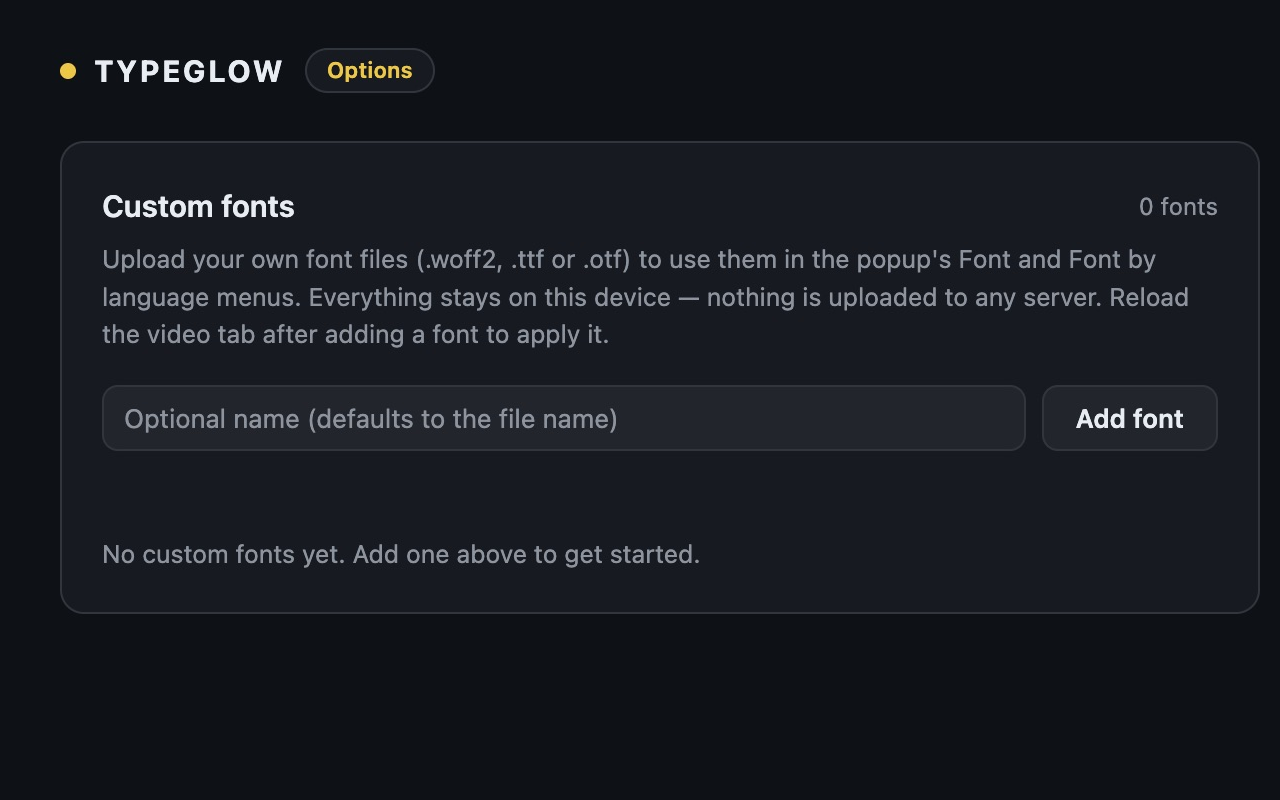
Add a font file from your device and use it in the popup, including your language assignments. Typeglow accepts .woff2, .ttf and .otf files.
Font files stay in local extension storage. Reload your video tab after adding a font. System-font availability depends on your device.
Only add fonts you have permission to use. Importing a file does not grant a font license. Font licensing and usage
Your subtitles.
Your device.
Subtitle text is processed locally to choose a font. Your settings, presets and imported fonts stay on your device. The extension has no account, advertising or analytics.
Read the privacy policyBefore you start.
Where does Typeglow work?
Typeglow customizes captions on the YouTube and Netflix websites in Chrome. It does not work in their native apps or on other video websites. It styles the subtitle track you select on the video service; it does not generate, translate or download subtitles.
Can I install it from the Chrome Web Store?
Yes. Install Typeglow from the Chrome Web Store. The Chrome version is free.
Does it recognize every language perfectly?
You can assign fonts to 20 language options. Detection is an estimate and can misidentify short or mixed-language cues. Choose a default font, or turn Auto language font off to use one font for every caption.
Can I move Netflix subtitles with the mouse?
Use the position slider for vertical placement. Alt/Option dragging on Netflix is experimental; its fullscreen and resize behavior is still being tested.
How do I get help?
Email support@thunderlokki.com. Include your browser version and the control you were using. Avoid sending account passwords or private viewing information.