 Typeglow
How to change Netflix subtitle font and size on desktop
Subtitles should help you follow the story. If the text feels too small, blends into a bright scene or looks wrong in your browser, start with Netflix’s own settings. If you want a particular font or a different font for each language, Typeglow gives you another way to adjust existing captions.
This guide is for the Netflix website on a computer. Typeglow supports the Netflix and YouTube websites only; these steps do not change their TV or mobile apps.
Start with Netflix’s subtitle appearance settings
You may already have the controls you need. Netflix lets you adjust subtitle font, size, shadow and background color. In a browser:
- Open your Netflix Account.
- Go to Profiles and choose the profile you watch with.
- Open Subtitle appearance.
- Choose your appearance settings and select Save.
Netflix notes that availability can depend on region, language and device, and some older devices may not show the chosen appearance. See the official Netflix subtitle appearance guide for those exceptions.
If a larger size and one of the available fonts solve the problem, you can keep using those settings. A browser extension becomes useful when you want more control over the typeface or a style you can reuse while watching.
Use Typeglow for more font control in Chrome
Typeglow is our free Chrome extension for styling captions already provided by Netflix and YouTube. It does not create subtitles, translate dialogue or add missing caption tracks.
- Install Typeglow from the Chrome Web Store.
- Open Netflix in Chrome, start a title and select a subtitle track in Netflix’s player.
- Open Typeglow from Chrome’s extension menu. Pin it to the toolbar if you want quicker access.
- Adjust the font size, choose a font and compare the same subtitle line before changing another control.
Netflix still handles playback and the caption language. Typeglow changes how that selected caption layer looks in the browser. It has no separate account; Netflix access still requires your usual Netflix account.
A simple setup for small text on a bright scene
Pause on a line you find hard to read. Keep the window size and subtitle line the same while comparing settings, so you can see what each change actually does.
- Increase size first. Try 36px as a starting point, then adjust for your screen and viewing distance. Check a longer, two-line caption as well as a short one.
- Add a dark background. Try a black background at about 60% opacity. You should still see some of the scene behind the text, while the words become easier to separate from it.
- Try a shadow or outline. Compare them on both a bright shot and a dark shot. Keep the effect that helps without making the letters feel crowded.
- Change the font last. Compare Arial with Georgia at the same size. Choose the one you find easier to follow, rather than changing font and size together.
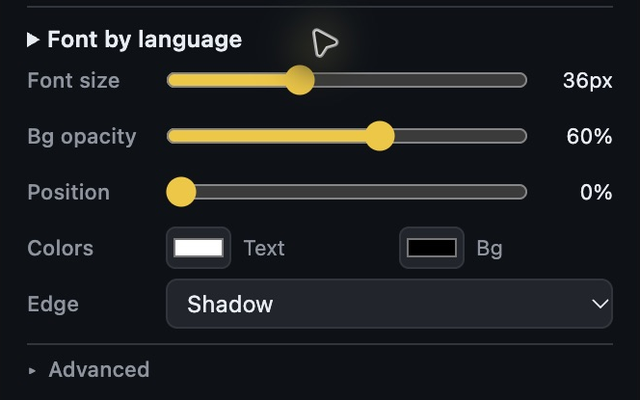
If the caption sits too close to the player controls, adjust its vertical position in small steps. Once the result works for you, save a preset. Typeglow keeps settings for Netflix and YouTube separately, so adjusting Netflix does not have to change your YouTube setup.
Give Vietnamese and English their own fonts
A font you like for English may feel less comfortable when reading Vietnamese accents or another writing system. Typeglow lets you assign fonts by caption language and choose a default for other captions.
For example, try the bundled Be Vietnam Pro for Vietnamese and Georgia for English. Turn on Auto language font, find the language-font controls in your popup and assign your preferred fonts. Then change the subtitle language using Netflix’s own player menu.
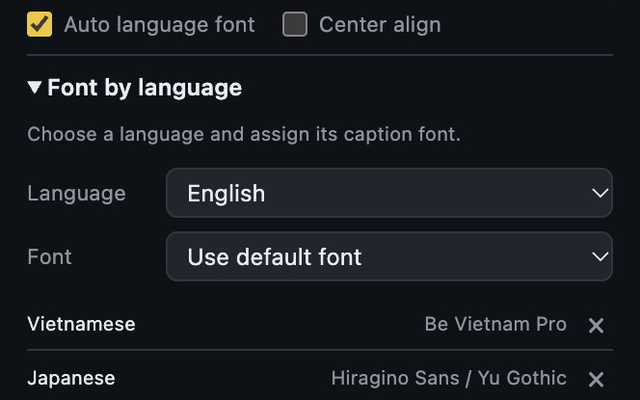
Detection runs locally and can misidentify short or mixed-language lines. Do not expect every language change to produce an immediate, perfect match. Set a usable default font, or turn automatic language selection off if you prefer one font for every caption.
You can also add a .woff2, .ttf or .otf file through Typeglow’s custom-font controls. Reload the video tab after adding it. Use a font that includes the characters you need and that you have permission to use; importing a file does not grant a license. See our font licensing and usage notes.
Development check, 12 October 2026: in Chrome QA build 2.2.2, Netflix captions changed from English Georgia to Vietnamese Be Vietnam Pro and back to English Georgia after language confirmation. This check is not a promise of perfect detection. The public Chrome listing currently offers 2.1.1; popup layout and controls may differ between versions.
If the font still looks wrong
- Check that subtitles are enabled. Select a caption track in Netflix. Typeglow cannot supply a track the title does not offer.
- Check which font control you changed. With automatic language fonts enabled, a language assignment can take priority over the default font.
- Check the font itself. A system font must be available on your computer. A custom font that lacks certain characters may fall back to another typeface for those characters.
- Check for other caption extensions. Two tools styling the same caption layer can interfere with each other. Compare with only Typeglow active.
- Check whether the words are part of the video image. Burned-in text is not a separate caption layer and cannot be restyled by Typeglow.
To compare with the original appearance, use the styling on/off control if your installed version provides it, or disable Typeglow and reload the video tab. In our Chrome 2.2.2 QA check, turning Styling OFF removed Typeglow’s rules and revealed the existing Netflix subtitle appearance. It did not reset Netflix’s own account preferences.
If you still need help, contact Typeglow support with your Chrome version, Typeglow version and the setting you changed. Do not send account passwords.