 Typeglow
Netflix subtitle font changed? Common problems and what to try
Thin letters on a bright scene. Subtitles that suddenly look huge. A font that looks different on your laptop than on your TV. If Netflix captions have become uncomfortable to read, first identify whether the problem is the font, the size or the device applying the settings.
For watching on a computer, Typeglow can help you choose a clearer font, enlarge existing captions and add a translucent background on the Netflix website. It does not repair Netflix’s mobile or TV apps, missing subtitles or translation errors.
Other viewers have reported similar subtitle problems
There are public complaints, although they describe different devices and symptoms. They should not be treated as evidence of one universal Netflix bug:
- Unexpected size in a browser. An August 2025 Reddit discussion about suddenly huge subtitles includes reports from Chrome and Firefox users. A later commenter described the issue on a MacBook Pro in Chrome. These are individual reports; they do not establish whether Netflix, the browser or another setting caused the change.
- A thin font that ignores saved preferences. In a July 2026 mobile-app discussion, a viewer described thin, white Courier-style captions that were difficult to read against bright backgrounds. They said appearance changes worked on desktop but not in the mobile app. That distinction matters: a desktop extension is not a fix for the app.
- A selected font that looks different during playback. A July 2026 thread about a new subtitle font describes a mismatch between a saved Block choice and a typewriter-like result on an iPhone, with similar iPad reports in the replies.
These examples show real frustration, not a measurement of how widespread the problem is. Our founder also built Typeglow after subtitles looked wrong on one Netflix browser setup and the available controls did not provide the font choice he wanted.
Which Netflix subtitle font problem are you seeing?
The font is too thin or blends into the picture
Compare a bright scene with a dark one. If the words are present but difficult to separate from the scene, try a darker caption background, a shadow or an outline before changing everything at once. A font with a shape you find easier to follow can also help.
Subtitles are too small—or suddenly too large
Check the same caption at your normal window size and viewing distance. Change size separately from font so you can tell which control helps. Test a long two-line caption as well: a comfortable short line can still wrap badly when the text gets longer.
The same profile looks different on another device
Do not assume that a saved appearance choice will look identical everywhere. Netflix’s official subtitle appearance guide documents device and language exceptions, and points Apple-device viewers to Apple’s caption controls. Compare on the device where you actually watch.
Accents or some characters look different from the rest
Check whether your chosen font contains the characters you need. For example, compare a full Vietnamese sentence with accents, not just an English word. Typeglow includes Be Vietnam Pro for Vietnamese and lets you add a licensed font file. A font choice cannot correct an incorrect subtitle transcript.
Start with Netflix’s own subtitle appearance settings
In a browser, open Account → Profiles → your profile → Subtitle appearance. Choose your appearance and save. Netflix provides font, size, shadow and background controls; availability varies by device, language and region. Follow its current instructions for your device, especially if you watch on a TV, iPhone or iPad.
Reopen playback on the device you are checking and compare the result. If you need the full desktop walkthrough, see our Netflix subtitle font and size guide. That guide covers changing appearance; this article focuses on diagnosing an unexpected or hard-to-read result.
Use Typeglow when you want more control in your browser
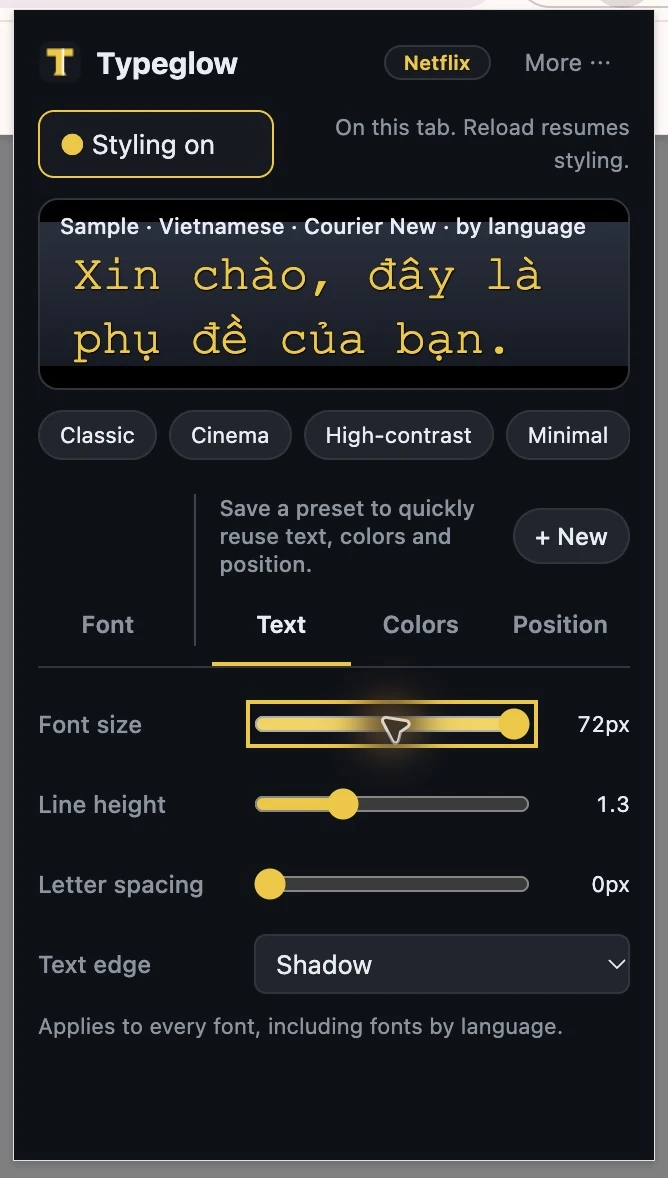
If you watch on the Netflix website and the available appearance choices still do not suit you, Typeglow gives you direct control over the existing caption layer. Choose a typeface you prefer, adjust the size and add a clearer backdrop while keeping Netflix’s selected subtitle track.
- Install Typeglow for Chrome or Typeglow for Safari on Mac. Chrome is free; the Safari app is a one-time purchase.
- Open Netflix in that browser, select a subtitle track and allow the extension on the site. Reload an already-open video tab if the extension has just been enabled.
- Pause on a caption you find hard to read. Change one control at a time: font, size, then background. Close the popup to compare with the same line.
- For different viewing languages, add font assignments and keep a usable default. Automatic recognition can misidentify short or mixed-language captions.
- Save a preset once you have a comfortable setup. Netflix and YouTube keep separate settings.
Try this comparison: start with Arial, a size comfortable on your screen and a black background around 60% opacity. Check the result on bright and dark scenes. For Vietnamese, compare the bundled Be Vietnam Pro. These are starting values to adjust—not a guarantee that one setup suits every viewer.
This is a local appearance workaround for supported web captions, rather than a repair to Netflix’s account settings. Your Netflix subscription is still required. Typeglow has no separate account, advertising or analytics; settings and imported font files stay on your device.
When Typeglow is not the right fix
- Netflix on a TV, phone or tablet: use the platform’s caption settings or Netflix support. Typeglow does not change native video apps or support iPhone/iPad.
- No subtitle track, wrong translation or out-of-sync text: report the title or playback issue to Netflix. Font styling does not supply or rewrite captions.
- Words burned into the picture: these are part of the video image, so a caption extension cannot restyle them.
- Only one language ignores the default font: check its saved language assignment, which can take priority. Turn automatic language fonts off to compare using one default.
- Several subtitle tools are enabled: compare with one styling extension at a time to rule out conflicting overrides.
If Typeglow still does not change a supported web caption, check site permission and your installed version, then contact us with your browser, extension version and the setting you changed. Do not send account credentials.
Watching in more than one language? Read how to choose subtitle fonts by language.